

Links which appear in Office documents, like http://www.consumingexperience.com/ in the screenshot of Word above, normally open in Internet Explorer when you click them - even after you've set Outlook email links to open in Firefox. But you can force links in Microsoft Office (i.e. Word, Excel and Powerpoint) documents to open in the fab free browser Firefox instead when you click (or Ctrl-click) on a hyperlink that's shown in a Word document or Excel spreadsheet etc.
Here's a tip for how you can make links in a Word etc document open in Firefox when you click the link - in Windows XP at least:
- Change your file associations so that hyperlinks generally open in Firefox.
- (Non-geeks, skip to item 3 for the easy way!) Make this registry edit having closed all Office apps first (NB, usual warnings: backup your registry first, and you edit or change your registry at your own risk! also don't know if it'll work in Vista):
- in HKEY_LOCAL_MACHINE\Software\Microsoft\Office\9.0\Common\ create a subkey called Internet if it's not already there
- in that subkey create a new DWORD value named ForceShellExecute with a value of 1 (or change its value from 0 to 1 if that value already exists)
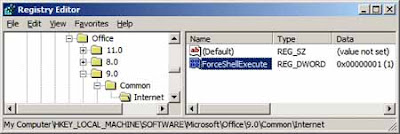
- If step 2 was gobbledygook to you, not to worry. You can instead - after you backup your registry first, and this is definitely at your own risk! - close all Office programs, then try this .reg file I uploaded earlier (how to use online .reg files - just click the link and run it or save then run it, saying Yes to let to change your registry).
- If links still don't open in Firefox after you've re-opened Word etc, try rebooting. And of course you'll need to allow Word, Excel etc to access the internet through your firewall if you haven't already.

It seems that what registry change does is to force hyperlinks in various Office documents to open according to what's been set for their file associations (in Windows Explorer, Tools, Folder Options, File Types). So now you can click links embedded in Word, Excel etc files and they'll in Firefox instead of IE. Good trick, eh?
I've tested it in XP Service Pack 2 and Word, Excel and Powerpoint 2003, but it also seems to work in Word, Excel and Powerpoint 2000 and 2002 versions too.
Warning: note that this doing tweak may muck up any links in Office document to a bookmark location in another locally-saved (i.e. on your computer) document - see this article.
Tags:


21 comments:
Works a treat! Thanks
hello :)
in office 2007:
go to
HKEY_LOCAL_MACHINE\SOFTWARE\Microsoft\Shared Tools\HTML\Clients
and delete the string value:
"C:\Program Files\Internet Explorer\iexplore.exe"
Source: digging the damn windows registry file ;)))
Superstar! Works a treat - you just ensured that several clumps of hair stay growing on my head rather than getting torn out :o)
Thank you all for the feedback, it's good to hear.
Glad I saved a bit of your hair zombie!
great man..thnx
keep up the good work :))
Omg, thank you! Microsoft sure doesn't want to make it easy to open their links in a browser other than IE.
Hey guys. I'm certain this is a viable solution (also judging by the appreciative comments) but i try to do everything possible to avoid tampering w/registry keys/values. Just experimenting, decided to cut'n'paste my links into an open gmail text field (using firefox), and, voila, works like a champ opening w/firefox. Totally redneck solution but works in a pinch!
I have Office 2007 and the original change to the registry worked perfectly (no need for the change to HKEY_LOCAL_MACHINE\SOFTWARE\Microsoft\Shared Tools\HTML\Clients proposed by Christian Orlando, at least not for me. Thanks for this posting -- very helpful!
Setting default browser manually
You can set the default browser in Windows 2000 (SP3+) Windows XP (SP1+) and Windows Vista using the "Set Program Access and Defaults" feature (renamed "Set Program Access and Computer Defaults" in Windows Vista). [3]
Windows 2000: "Start -> Control Panel -> Add or Remove Programs -> Set Program Access and Defaults"
Windows XP: "Start -> Control Panel -> Add or Remove Programs -> Set Program Access and Defaults -> Custom"
Windows Vista: "Start -> Default Programs -> Set Program Access and Computer Defaults -> Custom" [4]
(Windows XP/Vista: Click the icon to the right of "Custom", to expand the category.)
You will see Internet Explorer and other installed browsers listed under "Choose a default Web browser" . Select "Mozilla" (Suite), "SeaMonkey" or "Mozilla Firefox" (in some cases, "Mozilla Firefox" may not be listed; to add it back, reinstall Firefox [5]).
If the above doesn't work or if the "Set Program Access and Defaults" feature isn't available in your Windows version, you can manually set the default browser by selecting it as the the default program for individual file types and protocols as follows:
Windows XP and earlier: Open the Control Panel from the Windows Start menu.
In Windows 2000 and earlier, or if Windows XP is using the Control Panel "Classic View": Click on "Folder Options -> File Types".
In Windows XP, if using the Control Panel "Category View": Click on "Performance and Maintenance". Then, click on "File Types" in the left column under the heading "See Also".
Windows Vista: Click the Start button, open "Default Programs" and then click "Associate a file type or protocol with a program". [6]
Assign the following protocols and file types to the browser you wish to set as default:
URL:HyperText Transfer Protocol (HTTP protocol)
URL:HyperText Transfer Protocol with Privacy (HTTPS protocol)
URL:File Transfer Protocol {FTP protocol)
HTML File
HTM File (optional)
In Windows XP and earlier, you can find the URL protocols listed above in File Types, under extension "N/A" or "(NONE)".
Note: On Windows Vista, you may be unable to associate the HTTP HTTPS or FTP protocols with SeaMonkey because it does not appear as an available option. See this forum topic for additional information.
The last comment seemed to fix my problem - many thanks....
Just by word of explanation. I have been using firefox for years and I recently upgraded to IE8 (my computer did it for me) then I found my hyperlinks everywhere went into delayed response (then eventually IE8 popped up). I sometimes cut from a web page then paste to excel and run a macro - the data formats had all changed in IE8. Thanks again
You can set the default browser in Windows 2000 (SP3+) Windows XP (SP1+) and Windows Vista using the "Set Program Access and Defaults" feature (renamed "Set Program Access and Computer Defaults" in Windows Vista). [3]
Windows 2000: "Start -> Control Panel -> Add or Remove Programs -> Set Program Access and Defaults"
Windows XP: "Start -> Control Panel -> Add or Remove Programs -> Set Program Access and Defaults -> Custom"
Windows Vista: "Start -> Default Programs -> Set Program Access and Computer Defaults -> Custom" [4]
(Windows XP/Vista: Click the icon to the right of "Custom", to expand the category.)
You will see Internet Explorer and other installed browsers listed under "Choose a default Web browser" . Select "Mozilla" (Suite), "SeaMonkey" or "Mozilla Firefox" (in some cases, "Mozilla Firefox" may not be listed; to add it back, reinstall Firefox [5]).
Thanks for the heads up. This was the only place on the net I could find the solution to this annoying problem. Microsoft dropped the ball on this one.
My Office 2007 install had the key in this location, where I added ForceShellExecute=1
HKEY_CURRENT_USER\Software\Microsoft\Office\12.0\Common\Internet
Anonymous said...
> Setting default browser manually
Gee, thanks for the useless generic advice, Anonymous. It's nice that you couldn't be bothered to check, but THIS DOES NOT WORK for Office. Many "help" sites are getting cluttered by such useless advice that only confuses the situation.
Very good tip, thanks!
It worked on a Win XP SP 3, MS Office 2002
Works great! Thanks so much taking the time to create this registry fix...and a 'fix' it is. Sucks Microsoft doesn't make it easy...
The Step 3 from the original post worked great! Thanks!
Great advice. Did it on Windows 7, Office 2007 and it worked for making Firefox to open links from Excel . Thanks a LOT!
Thanks - this was a big help :)
On my system I had to add the subkey to all the Common areas found under the HKEY_LOCAL_MACHINE\Software\Microsoft\Office hive including the top level.
for 32-Bit Office on 64-Bit Window use
HKEY_LOCAL_MACHINE\SOFTWARE\Wow6432Node\Microsoft\Office\9.0\Common\Internet
Setting default browser manually worked excellent in Windows 7. IMHO, much better than editing the registry.
Nice one my friend, I had seen the file association change on other websites but this didnt work. Only when I made the reg tweak did Firefox open in office as default. Much appreciated.
Post a Comment