
This post explains how to get http://www.yourblogname.com/ to work for your blog when you're using Blogger and want to use your own www domain name for your blog (instead of http://yourblogname.blogspot.com), and not just the "naked" http://yourblogname.com. I know lots of people have had problems with the www part, so I explain the fix.
It includes a step by step on how to change over smoothly to a www custom domain on Blogger, with screen shots for popular domain registrar GoDaddy and your Blogger dashboard.
Background
For bloggers on Google's free Blogger blogging platform, for over a year now since the introduction of the now feature complete fancy New Blogger, formerly known as Blogger Beta, with its widgety goodness and enhanced developer-friendliness, you've been able to blog via Blogger's service and enjoy free webspace on Blogspot.com, but use your own domain name for your blog instead of http://YOURNAME.blogspot.com/.For example this blog's main URL is now http://www.consumingexperience.com but it used to be http://consumingexperience.blogspot.com (and that web address or URL still works to get you here, and my blog's files are still stored behind the scenes on Blogspot.com).
This custom domain service is excellent, and for SEO reasons I very strongly advise using it as soon as you can after you start your blog (ideally from its inception), because then:
- you can build up search engine cred under your own domain name, rather than under "whatever.blogspot.com"
- you won't suffer so much the pain of the sudden big drop in search engine rankings if you've built up decent Google juice under blogspot.com, then switch to a custom domain, and
- you won't suffer so much through the effort and time and worry that it will take to build up search engine cred all over again under your custom domain name.
I've blogged the benefits and reasons for using your own domain name ASAP, previously - after I suffered myself through a drop in this blog's PageRank and its placing in Google's search results, when I switched this blog's domain from consumingexperience.blogspot.com to www.consumingexperience.com. I'd say it took at least 6 months for my visitor numbers to get back to roughly where they were, though luckily in fact during the last couple of months they're starting to better the old figures. But basically, I've lost 6 months of increasing my rankings. And I'd mention that my AdSense earnings, though they're not anything I can live on, dropped significantly too during those 6 months.
I think using a custom domain is easier than FTP publishing, where you use webspace on your own server (or space you rent from a hosting provider) to host your blog's files instead of Blogspot. (See Blogger Buzz for some advantages of custom domains over FTP).
There are decent Blogger help pages on custom domains. However people had trouble getting the "www" URL to work to take people to their blogs after switching to a custom domain on Blogger. I thought the teething problems had been ironed out by now, to mix a metaphor, but I recently had a comment that suggested otherwise.
So, here's how to switch to a custom domain on Blogger that starts with www (e.g. "www.yourblogname.com").
How to get a www URL for custom domain to work on Blogger
The main thing to note is that technically "yourblogname.com" is separate and different from "www.yourblogname.com".Blogger will only let you use one of them. Most people are used to the "www" URL, so it's best to use that, and then redirect the "sans www" version (yourblogname.com), the "naked domain", to the www version.
There are two main things you have to do - set things up on the domain name end (your domain registrar), and then set things up on the Blogger dashboard end.
To do that, the steps to take are these, in this order (to avoid downtime on your blog) - assuming you've already bought your own domain name from a provider:
- Go to your domain name provider's site (not Blogger) - i.e. your domain name registrar or domain name hosting service, from whom you bought your domain name.
- Login to your account, and set things up so that the www version of the domain name you bought points to ghs.google.com (geek speak: on your domain name provider's DNS server create a CNAME record for www.yourblogname.com, and associate the www "alias" or hostname with ghs.google.com as the value or destination - see also Google's helpful guide on the domain name system).
- Now Blogger has a help page with step by step instructions on how to create CNAME records if your domain name provider is a common one like:
- GoDaddy.com
- ix web hosting
- 1and1
- EveryDNS.net
- Yahoo!SmallBusiness
- No-IP; or
- DNS Park;
- and even generic instructions for Other hosting services
- The most important point to note is that you must create the CNAME record for the www "alias", not for the "naked" domain.
- Blogger do provide helpful a step by step (see the links in 3 above), but I always find screenshots more helpful, so here are the steps for my own registrar GoDaddy, pictorially - if you use another registrar hopefully they'll still be of help. The things to click are outlined in red, and obviously you should select your own domain, the one you want for use on Blogger:

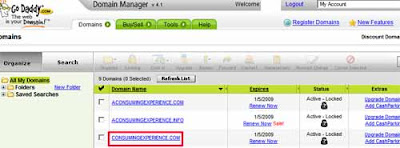
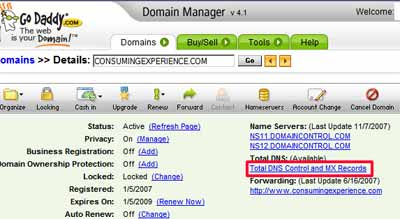
If you've already got a CNAME record for "www" then click to edit it (see the bit outlined in blue below), otherwise click to create a new record (outlined in red).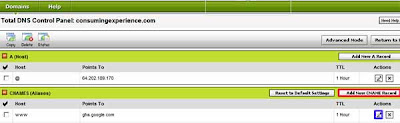 Now the next bit is the trickiest bit for non-techies to get, in my view. Note that for the alias box you enter just "www". NOT "www.yourblogname.com", not blank, just "www" (don't worry about the TTL line, no need to change that). Then OK or Save everything: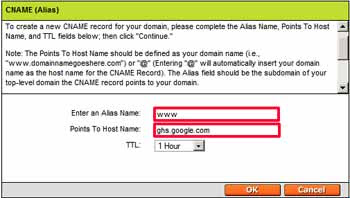
- It'll take a few hours, maybe a day or so, for this to "take". So give it a day or so, then check that "www.yourblogname.com" really does point to ghs.google.com. To do this, you can do a nameserver check using services like Pingability.com (which is free) - in the box enter "www.yourblogname.com" (obviously changing it to your own real domain name, with the www), click Check Domain, wait a bit, and the results should say that your www points to ghs.google.com:
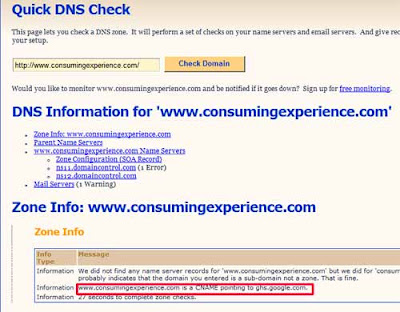 Don't worry that if you try www.yourblogname.com and you get a 404 error. That's because you've not quite finished yet. But it's best to test that the switch to Google on the domain name end has worked, before you go to the next step.
 - Now you're ready to switch things over on the Blogger side. This Blogger help page shows you how (see the "Blogger Settings" section there) but here are screenshots again. The important thing here to note is that you should enter the "www" part also when you give Blogger your domain name, and of course Save your settings:
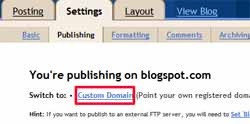
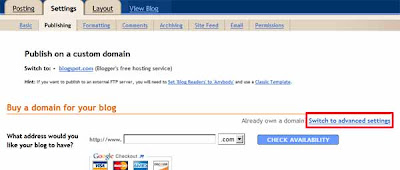
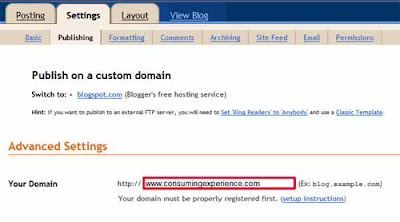
(Google Apps aside. Blogger now provide the option to buy your domain through them. If you do that, I suspect that the "www" should be easier to set up than before, but I've not tried that option so I can't say for sure. That's because you'll get a "Google Apps for your domain" account with it, and in the past people have had problems if they had their domain on Apps then wanted to use the same domain as a custom domain on Blogger because Apps took over the "www" name so if you tried to use it for your blog you'd get a "Blog already hosted at this address" error message. If you already have GAFYD and had that problem, you had to delete that service from Apps in order to use www on Blogger. Or if you had set up the www on Blogger, then tried to use that Google Apps for that domain, Apps would take over the "www" subdomain. But I'm not sure if it still does. Effectively you couldn't have a domain hosted on Apps and use the www for that domain on Blogger at the same time. If anyone knows whether when you buy a domain name via Google from the Blogger dashboard page you can use www for your domain even though you get Apps, or indeed what the situation now is with Apps vs. Blogspot and the www issue generally, please let me know!) - And that should be it! Test the "www" address in your browser and hopefully it should now go to your blog and show your shiny new domain name.


How to forward your naked domain to your new custom domain
It would also be sensible to make sure that your bare domain, e.g. yourblogname.com, will forward to your new custom domain hosted on Blogger / Blogspot. Again, you do that through your domain registrar, after logging in, via their domain forwarding option.Here are screenshots showing how it's done with Godaddy, after you've selected the domain to amend:

Make sure you fill in the "Forward to" box with your "www" domain URL, and that "301" is selected rather than "302", then OK and save etc:
 (With thanks as always to my Magical Sheep pardner Kirk, without whom I'm sure the www would have gone wrong for me too!)
Tags:


120 comments:
Thank you for your help! This is the first article I've read that actually helped allow me to forward my blogger address. The screenshots were really helpful.
Is there any other method to redirect the naked domain to the www domain? I ask because my registrar does not provide this option and because Blogger has a checkbox to "Redirect yourdomain.com to www.yourdomain.com".
What happens to the feeds from the old blogspot domain?
For Eg. I have been using feedburner for my blogspot blog. How do I redirect the feeds to the new domain?
Thanks
Me, too! I've succcessfully set up the custom domain - but now I've screwed up my feed (also with feedburner.
Help?!
Vijeesh, Dette, to redirect your feed see this post - scroll down to the section with the Blogger Settings screenshot, just enter your existing Feedburner URL in there where shown & save.
I actually just found it - hurray!
Thank you!
Ronald, sorry, I will update my post soon to mention that Blogger option. Unfortunately that option works only if you can set things up at your domain registrar to "send" the naked domain to Blogger via a CNAME entry at your registrar. Then Blogger does a 301 redirect of the naked domain to the www if you've ticked the Blogger checkbox for that. So I just do it direct.
There's no option to set CNAMEs at your registrar at all? It may not be called "CNAME" but something else... DNS management, "subdomains" etc. Use @ for the "alias" and if ghs.google.com doesn't work e.g. they require a raw IP address, try 72.14.207.121.
What changes should one do in Google Webmaster Tools?
Do I have to add a new Sitemap for the custom domain?
Thanks
Thanks for the useful information. I used it for setting my blog www.savingtoinvest.com
It's official you are my new tech-guru!!!!
Thanx I finally mangede to stumble into someone able to keep it simple!
Keep up the good work !
Thank you for this!
I wondered how to also forward my "naked" domain.
Great! Finally, my domain is working now. Your post and comment really help me because I bought my domain from Yahoo and they need raw IP address to point my "naked" domain to my blog. Thanks a lot! :)
Thank you very much, your post helped me complete my DNS settings, support from my host provider was unable to help me finish the process. Great job with the explanation.
I wish I could wrap my brain around all this (and I have a bachelor's degree in Computer Information Syatems... UGH!). My domain is officemonkey33.com... could you possibly ping it and see if anything jumps out at you? I have gotten a serious headache from this.
Thanks!
hey nice article. I have a problem i got a custom domain but it seems it's affecting my feed. I need detailed help on what to do.
Thanks for being the only site that made my redirect work. I use godaddy and now both therearguard.com and www.therearguard.com point to my blog and show up in the address bar - very nice. But now all my Digg counts are gone! The buttons are there but all the Diggs for my posts are gone. Any suggestions?
Thanks very much.
Great and very detailed info! It worked for me, thanks!!
Hello there!
Nice explanation! But I just wanna ask: If I get myname.com, my visitors cannot get me if the enter www.myname.com right? So it's better to get www.myname.com and my visitors still can get me thru the naked myname.com. Is this right?
I've been thinking of getting myself a domain. But, I'm so not sure how! =X
Hoping for some guidance! =)
You have very neatly explained as to how to transfer to custom website from blogger. I had done that without much of problems. But i wasn't able to re direct my naked domain to www domain. After going through your instructions, I was very easily able to do that within no time. THANKS a ton.
I would like to have my blog point directly to my custom domain, (currently it just redirects). Unfortunately when I provided the CNAME ghs.google.com to the company administering my domain registration, they told me the following:
"I am unable to make a cname for ghs.google.com.
I will need an ip to make the cname, can you request an ip from them."
So, before I go through the pain of emailing google/blogger, does anyone know how I can get an IP to make the CNAME for my blog?
Thanks!
Thank you all for your comments!
@Kenwooi if you get myname.com you can set things up so that your visitors can use either myname.com or www.myname.com (or anything.myname.com, if you set it up that way) in order to get to your site - you'll need to do that in your domain registrar's settings e.g. GoDaddy.
My post above explains how for GoDaddy, similar steps should work for others or just ask the company you bought the name from or the company who hosts your site.
@upskirts celebs the IP address for ghs.google.com is 72.14.207.121
Thank you so much. This has been the most helpful page regarding this that I have found. I linked up to you after having questions as to how I figured it out. :)
"if you get myname.com you can set things up so that your visitors can use either myname.com or www.myname.com (or anything.myname.com, if you set it up that way)"
Aha! That's what I wanted to hear. I want to use blog.mydomain.info. My ISP seems willing to do that.
thanks...your post helped a lot.
This advise is really good, but what do you do if your name is registered trough a company that just doesnt get it when you try and explain to them that you want to use your domain name as your google blog address?
What does it cost to use your own domain name as a google blog address. If my domain name was registered through www.godaddy.com whould I have to pay them extra hosting fees or something?
And can I get a email address as well?
Sorry I'm still very new at this and trying to figure out how everything works.
Thank you
Kelli, Dave, Chris, Anon, thanks for the feedback! (And @Kelli thanks for the link, appreciate it)
Anon if your domain name company doesn't let you set CNAME etc yourself, why not transfer the domain to one that does? Ask them what you need to do (e.g. send them a letter) in order to achieve that, and hopefully they'll be more helpful in order to keep your business? You should be able to get your own email address but again talk to your domain registrar about that.
Thank you so much! i am so new at this and i was having problems with my non www. domain loading to the blog. it was really easy after reading your blog :)
Great help! I wish google would put this on their Google help documents for blogger. I've had this problem with google ever since! (Google's support/help documents for custom domain is really poor)
thanks a bunch for this tutorial!
it somehow worked for me in less than 10 minutes!
my godaddy account "took" the cname change super fast and now i can enjoy this feature!
great tutorial!
Hi,
I have been using the blogger services for a while now.
purchased a custom domain through godaddy.com (through blogger services).
my blogwebsite through blogger is
dpanchigar.blogspot.com. the custom domain i purchased was www.datastoragewiki.com
This is been working excellent.
Now recently i just purchased storagenerve.com domain through blogger (godaddy) and through the blogger setup changed all the domain forwarding for storagenerve.com to dpanchigar.blogspot.com.
The problem is my old domain name www.datastoragewiki.com is not working any more and displays a 404.
I tried going into godaddy's control panel (for datastoragewiki.com) and forwarded the datastoragewiki.com to www.storagenerve.com
Its been more than 48 hours and its not working.
Any help is appreciated.
Thanks for this tutorial. Its the same steps for google app engine for the most part. Needed to find out how to forward my naked domain to www.
Cheers,
Royce
Thank you all for the feedback, much appreciated! Glad to have helped. :)
@Devang, try also forwarding www.datastoragewiki.com to the new URL (forwarding just datastoragewiki.com may not be enough).
You have a chocolate from me...
Thank you!
Thank you. Best explanation out there that actually worked!
Cheers,
Uduak
thnx for the tutorial... but i have a problem there...
i following all the steps that you asked for...
my blog was http://clwolvi.blogspot.com and i bought www.niteshkothari.com from godaddy for the same blog...
after following all the steps when i went to new domain i.e. www.niteshkothari.com it says "Domain name does not exist in database."
Is it because i just set the new domain and it takes some hours.. i have pingged this domain... n cname is pointing to ghs.google.com
I really don't understnd what is the problem...
please help...
Truly helped. Thank you so much.
Is their a way to keep pagerank doing this? Thanks!
and in the past people have had problems if they had their domain on Apps then wanted to use the same domain as a custom domain on Blogger because Apps took over the "www" name so if you tried to use it for your blog you'd get a "Blog already hosted at this address" error message. If you already have GAFYD and had that problem, you had to delete that service from Apps in order to use www on Blogger. Or if you had set up the www on Blogger, then tried to use that Google Apps for that domain, Apps would take over the "www" subdomain.
Hi, I got the above error massage.
How do I delete from Apps? I afraid that I can make a mess out of all these.
Please advise.
SK, Singapore
I found your post very helpful but I have a question.
I have set up an account with godaddy and have a blog on blogger. I did the whole custom domain name so they are linked. Problem is i have files/video content that my site needs to access from my godaddy hosting account. When I forward the address from http://mysite.com (godaddy) to http://www.mysite.com (blog) the files can no longer be found - because it ends up redirecting to blogger (which dooesn't have the files) Have you heard of this problem before/ know how to fix it? This is too much data to put up on blogger so it has to be on godaddy. I have tried blogger help and google to no avail.
I've done what you said, and since I've pointed blog.bradleywalter.com in the blogger publishing settings, it now directs me to the google homepage. have searched and seacrhed and cannot find an answer. Have you any ideas? I added the alias to godaddy for blog. to point the bradleywalter.blogspot.com. Any advice?
Thanks for the comments.
It does take time for a subdomain like www to be recognised generally but remember you have to make sure you set up the www to point to the right place, it won't automatically do that when you buy the main domain.
I can't help on Google Apps at the moment, ask me again in June if it's still at issue, but you should be able to get help on that if you ask in the Google Apps help group or look at the Apps help pages.
Accessing other files - depends where you're accessing them from. Just don't forward the subdomain where the files are kept and link to them direct. If they're on godaddy just leave them there!
Blog subdomain - after you add an alia for blog.yourdomain.domain you should get it to point to ghs.google.com as per Google's instructions, NOT to yourblog.blogspot.com - then Google will point it to yourblog.blogspot.com
Sweet - I got it working! is there a way to make www.bradleywalter.com have /blog on it to do the same as sending it to blog.bradleywalter.com? Perhaps i need to take that up with my host - because as of now, anything with @ or www, godaddy sends over to bradleywalter.smugmug.com
Any thoughts would be great!
Thanks!
This is what I was looking for! Maybe, Blogspot Help should simply provide a link to your website...haha. I was confused about the "naked" domain name thingy, and you smoothly cleared it up and even provided screen shots!! THANKS!
Super Duper awesome post....It really helped...Still a problem for me though...on the Godaddy dash the CNAME for www shows the ghs.google.com URL...everything is set-up correctly in Blogger...but my site still shows like it is parked?
I followed your step by step and managed to bring my custom domain that I have registered thru Godaddy to blogger and the URL has been without .blogspot dot com.
Now I have hosting account with hostgator(baby plan) and I want to host tha domain with hostgator. So, do you have any idea how to do that?
Thank you,
Nor
Something like /blog won't work on Blogspot, it has to be www.something or blog.something
You need to wait a while for the CNAME to take, if it's pointing to ghs.google.com and you've set it up correctly in Blogger just be patient.
If you want to host it not with Blogspot/Blogger but with another host like Hostgator then you need to ask that host for specific help. I can only help on Blogger and GoDaddy.
Thanks for the great post. I have used custome domains for blogger using Google's host and from and outside host and I have to say I think it is much easier to pay the extra dollar or two directly to Google. When you purchase from Google you get a free apps account so you can have email for free at your domain. I also use the Google sites to host pictures.
Thanks for a very helpful post.
Is it ok that I bought my custom domain through Blogger and Enom? I just switched from using blogspot.com to using a custom domain and I followed the steps provided by Blogger. Even though it is a custom domain, I still log in through Blogger and it looks like a Blogger site. I'm worried I won't be reaping the benefits of a custom domain if it really is a blogger site? Is there a better option, now that I have bought it through them?
Thanks a Bunch!!!! It helps Alot!!
This post has given me hope! Thank you!
I did the Pingability test and got this message below (edited to keep my mistakes private:) )in the DNS Information box. Can you tell me what it means and I do to fix it? If that's not beyond the scope of this post.
"Heads-up The A record localhost.[mydomain].com. pointing to [###.#.#.#] is a within private address space. This IP is not reachable from the Internet."
Awesome article sir...but i have created 4 Arecords, CNAME and deleted them before i read this article. now i am contacting hosting provider to correct them. i should have read this article before i make any changes.
Hi, this is a great post, very helpful as I have a blogspot blog (hatewatchers4life.blogspot.com) and need to transfer to my custom domain (www.hatewatchersblog.com). Just another question...I performed the steps you indicated for using my custom domain (Go Daddy), but deleted the A(Host) record by mistake. Does this matter or not?
I have started using a custom domain for all my Blogger blogs. I think that the best way to do this is to buy a domain through Blogger,and they set everything up and host it for you. this is the easiest way,rather than to go some where where you have to map and set up your domain all by yourselfe as this is just too complicated.Andrea.
Hello-
You were very helpful. I know that you are busy but if you have a moment can you answer a quick question. Do you know how to expand the reader limit for 100 to perhaps 200? I still want it to be private, but need to add at least 160 readers.
Is that something that would expand if I got the domain?
thank you so very much
rhiannonhgoodchild@gmail.com
I think there are some new additions to this. Merely creating CName record is not solving the issue. There is another step called creating four 'A' records.
Any idea about this?
I have just set one of my domains using your tutorial. Hope this works. Thank you so much.
Buying through Google Apps (or directly through blogger did not work for me!) It has been a nightmare, even after going through every possible tutorial. Google sets everything to point to google apps and as you said, you get the "this blog domain is already in use message"... Where do we go from here? Blogger people cant care less... Google apps people cant care and rest assured the godaddy people could not care less either!!!
nice. a very helpful article. thanks to u. i just setup the forwarding steps about an hour ago for my site. it works well with firefox but i do not know why, it doesnt work on IE. guess i have wait.
i forwaded my url example.com ....www.example.com
but now i am getting the error
Firefox has detected that the server is redirecting the request for this address in a way that will never complete.
Thanks for this excellent post. I was wondering: is there anyway to host the rest of my website elsewhere while hosting the blog at blogger.com? So people from the blogger.com network can access my WP website easily? Can I just use the custom domain feature ONLY for the blog portion of my website using some sort of subdomain?
great post! thanks you so much. I was desperately looking for help. But there is one thing I don't understand. How does it work with Emails? I mean if I change hosting from my provider to Google, can I still use my old Email addresses for my custom domain? Thank you so much!
this tutorial was incredibly helpful - easy to find - very clear - especially with the page views. thanks, worked immediately.
This is an incredibly helpful post which took a long time to get this specific info. Many thanks as I am expanding my blogs and much needed it!
Iam not able to redirect domain name http://domainname.com to http://www.domainname.com
The only way you can solve the issue of forwarding the domain without www is very simple. I tried lots of things to make it work but all in vain. Finally I found this method and blogged about it. I kicked my butt for this was so simple:http://amiatypist.blogspot.com/2010/04/domain-not-working-without-www.html
Thanks for the how to. I was able to forward my blogger page to my custom domain. Here is an ebeer for you :beer:
Thanks!
Thanks for all the feedback.
Just to add that the method mentioned by VOIP Blogger only works if you bought your domain name through Blogger via the Settings tab (when logged in to Blogger), the Publishing sub-tab - when you click to switch to Custom Domain and then use the "Buy a domain for your blog" section to get a domain name via Blogger (the best way, these days). That forwarding method however won't work if you got your domain in some other way.
If i chose to add custom domain through blogger then do i require this cname etc ?
ie setting DNS etc ?
pleae help !!
Thank you, thank you, thank you!!
Is there any other method to redirect the naked domain to the www domain? I ask because my registrar does not provide this option and because Blogger has a checkbox to "Redirect yourdomain.com to www.yourdomain.com".
Everything is fine but as an seo expert I would not suggest this method of mapping the naked domain.
For better seo mapping by creating ANAMES will help... more details
http://justawebmaster.com/2010/mapping-a-naked-domain-with-blogger-com
Many thanks. Your directions were clear, concise, and I enabled my custom domain without a hitch. There were other instructions when I searched Google, but yours are by far the clearest. Cheers!
Excellent.Additionally I added 'A record' IPs which were @ blogspot publish help page.Thanks
thank your very much...it helped me a lot
Works like a charm.
First time doing this and was easy as anything else.
I just waited 6 hours so the redirection to take place.
Great help, l love your articles. I hope to use a custom domain name for my blog. Does the tld extension like .com and .net have an effect in SEO?
How do you get this to show up in the URL
.com/2008/02/blogger-how-to-use-custom-domain.html
Mine is just my custom domain.
Thank you!!
Anne
How do you get this part to appear after your domain name with blogger as host and godaddy.com has domain?
/2008/02/blogger-how-to-use-www-custom-domain.html
Wow! God bless you. You wouldn't believe how much trouble I had finding anything on the internet to walk me through doing this. You are a life saver.
Thanks again,
Danae
Great help! Thank you!!
Hello, I wrote a blog entry. But I'm linking it back here. Hope it's okay. If not, I'm just going to remove it. Thanks!
Hey, I used your article. I linked it back, btw. Hope it's okay. =)
Glad it helped, people! And thanks for the link back Tsina.
Hey this post really helped me and i was able to add my custom domain to blogger. Thanks a lot. I appreciate it.
Hi!
Thanks for this tutorial!
My problem is when I change the www alias' address to ghs.google.com and change it to cname type, according to the pingability.com it points to ghs.google.com.mezzanin.hu instead of just ghs.google.com. Why is that?
Thanks
t0m
Thanks so much! your post was so easy to follow. Happy coincidence that I am also using blogger and had purchased my domain from godaddy too. I was a little confused with the godaddy settings, but I guess the page looks different now to what it did back when you posted....in anycase, your instructions were still helpful!
I will be checking out your post on flavicons next...I feel like an accidental tech head : )
Hi, i have create the cname record www to ghs.google.com.
Then i have create the 4 A records to the google IPs.
Now my site is working with my new domain, but when i post into instances, then i need to verify by entering random Captcha letters for blogspot. Somewhere recommend me to use Blogger’s advanced settings to FTP the blog to my own domain. How can i use FTP Blogger?
Ehat kind of settings must i do?
You are an awesome and wonderful person! =D Thank you sooo much for posting this. Your step-by-step instructions helped tremendously. After a couple days trying to figure this out, you saved me! Thanks! =)
Just wanted to say thanks. Glad folks out there post information to help others.
After Followed your tutorial,I hosted my site in blogger with a custom domain but with my friend's computer IP address, i can't get into my site. but with proof IP i would able to see my site, i thought the problem with browser
(I checked with Google Analytics) but almost all browser visitors came to my site.I don't know what is the problem. Is the problem with my Server or Browser? (I bought from Godaddy)
i have blog and host on blogger, but sadly it's deleted because someone report my blog. Then i move into wordpress and host on my own host. But i can use www.domain.com because always give error 404 page from google instead my hosting. it's works only domain.com not for www.domain.com
how to fix this?
I need help please
I purchased a custom domain through godaddy.com (through blogger services)
now I want to use that domain name for my new Wordpress blog.
but I don't know how to log in to godaddy to change the settings
I don't know what is the userneme and password ...as blogger did it automaticaly
does anybody now where can I find this info?
thank you
I purchased a domain from indialinks.com and redirected it to my blogger blog computertrixandtips.blogspot.com.
I came across your article while googling, I purchased Managed DNS from the registrar i.e. indialinks.com. I created a CNAME record with www.triksjunction.com and pointed it to ghs.google.com as written in the post. Then I changed publish settings in my blogger settings tab. Am I done with the procedures?
Awesome post man, I own a blogspot blog.
The url is http://javaenthusiastic.blogspot.com
and I want to purchase a new domain as
http://javaenthusiastic.com
I want to transfer my old blogspot blog to a new custom domain. I saw your post and it really helped me. Thanks a lot :)
Thank you so much for writing this. Your detailed step-by-step guide has helped me a lot. :) Really appreciate it!
hi! i am wondering about my blogger blog. well, blogger is starting to really bug me. but i am not yet ready to decide if i am just frustrated right now, or totally over it. with that being said...
1. if i buy a domain name from blogger can i move my blog to it's own site or to another web host like typepad or wordpress?
2. if i buy a domain name all those places where i have left my address as blogspot, will they no longer be able to access my blog? or will my blogspot address still be usable? assuming i stay with blogger.
3. if i move and my new domain name doesn't just take people there, then what? does blogger own me? do i have choices?
I spent long hours to do so but when i found your post i done it in just couple of hours. My blog is now registered on http://www.pakistanprobe.com.
Thank you man this post really helped me a lot. Thank you.
I've used this to help someone on a forum I visit. Very helpful, thanks!
it really... REALLY helps my friend...THANK YOU !!! i was searching in googles stupid help center and i didn understand a thing !
Thank you so much! You made it all clear and my blog at blogspot.com now points to my custom domain. YAY! lazygirldiet.co . Thank you again.
I think I have my subdomain issue working. It may not be set up in the best way for Google or other reasons, or maybe it will break at some point, but it does seem to be working. I still have the other questions. I don't know whether you're able to answer them or not, but I wanted to update you on the change on my subdomain.
Thanks..Helped me.. I used rlamsal.com.np as my blog domain. Previously it was smashingtech.blogspot.com. Thanks buddy.
BOY do I need help, I brought a custom domain name through google but i want to undo it and have it go back to its old address and re-use that brought domain name for another blog page... any ideas, dont ask why, its a mess
any ideas gratefully appreciated
This is a very helpful Blog, thanks heaps. Solved my problem.
I purchase a domain from xviya.com but i cant set it up with blogspot.
tell me one thing bro. If i will use this option. I will just purchase a domain? or i have to also purchase a hosting. can i use blogspot hosting free as i am using it already for my blog?
I have followed the steps blogger has to have my domain name on blogger... but I screwed up something. I have three domains and 3 blogs. I did all of them at the same time. One is completely correct. One is dicey, but I think I can eventually fix it, but one is completely caca. My entire domain goes to the blog. I changed my a record and cname (this is with godaddy). I know next to nothingh about all this (which s why I went with godaddy and website tonight), so am at a loss how to fix this. Is there a button to press that just deletes everything I did and I start again? What if I didn't want to have my domain on my blog anymore, say I lost the domain rights... how can I delete that?
Thanks for the detailed article on using Godaddy and blogger domains.
Will be happy to bookmark this website and use it as a point of reference for any future customers and client who are struggling to do the same thing.
Cheers.
Geoff.
Thanks for this tutorial.
I registered on register.com :)
But follow this step, worked for me
That's a nice article! I think godaddy is still pretty good for getting a domain name, I been using it for years with no prob. Their support isn't that bad either. I found a pretty good article/video on how to buy a domain and set it up here: http://howeduvideos.com/lesson-2-get-a-domain-name/
love u dude......... u provided such a good info. thanks thanks a lot
Thanks for this. i read the article but not all the comments, so i'm sorry if this question was answered: Is there a way within Blogger to get my domain to point to a different page on my site, i.e., a HOME page instead of the actual blog page? My domain peeps said i have to do it through blogger - although they could be wrong too. Thankful...
To all who are having problems try going into the Blogger settings as shown above, where you can change the domain name and sub-domain eg blog.whatever.com instead of www.whatever.com
Hi,
Very Nice and informative post. though i was thinking to write an article about the same topic. but next night i tried to open my blog
I am using Go daddy Domain,
www.technologiblog.com My blog was giving me 404 error on search engine. lol!!
But i think if you purchase Domain from Google instead of Go daddy then it will much better.
thanks a lot...coz url direct my site error..can you help me?
Thanks for sharing this awesome information but there is problem with me.when i give c name an error occur. the error is, Error Message: A,NS,MX,AAAA record Exists having same name. Please Check For Record Conflicts. please tell me about this i am waiting your reply. thanks
Thanks for the tutorial - I think that I will have solved my naked domain issue thanks to your help. Kudos.
Post a Comment