
Previously I covered how to set a Microsoft Word document to open read-only as standard. Now, here's a tip on how to open a Microsoft Word document in read-only mode on just a one-off basis (Word 2003, but I think it's similar in 2007).
- When you choose the menu File > Open, single left click on the document you want to open on a read-only basis on this occasion.
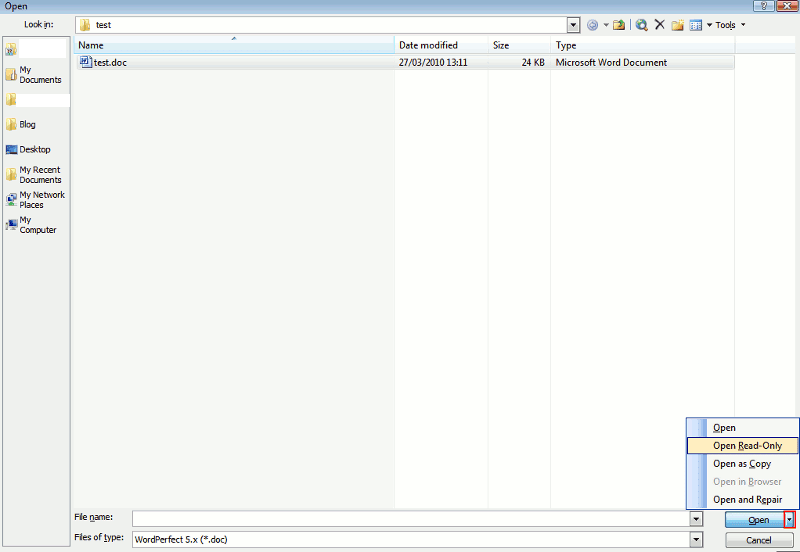
- Next, on the bottom right of the File Open dialog box, click the down arrow to the right of the "Open" button, outlined in red in the pic below:

- Then in the menu that comes up, pick "Open Read-Only", and that's it, the selected document will now open in readonly form!
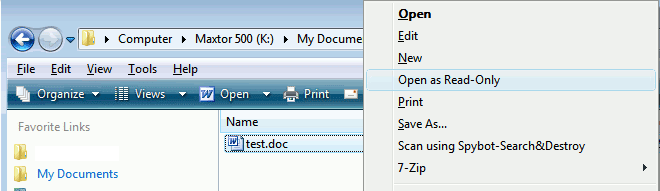
It's somewhat tucked away, isn't it? Well here's another trick - if you want to open a Word document as read-only through Windows Explorer or My Computer, there's also a way: just hold down the Shift key, rightclick on the filename, and there'll be an "Open as Read-only" option in the rightclick context menu, which you can select (works in Vista anyway):
Tags:


1 comment:
Very useful, thanks!
Why can't the build-in-office-help give such clear answers? ;-)
The only thing still missing is a way to create a link to a dokument that opens it read-only.
Post a Comment